
For the next step in this study, you will install the extension to modify the default search
engine experience on this iPhone.
Please continue for instructions on how to complete the next step.
On your iPhone, a Safari extension is a quick way of adding functionality to how Safari
operates. For this next step in the study, we will ask you to install and run a Safari
extension through TestFlight, a beta testing platform. This extension will set how Google is displayed when you conduct searches and
collect certain data on how you use Google and how you use the web overall. You may review a
detailed description of the types of data that we will collect
here.
Please follow the steps below to install and run the required Safari extension on your
iPhone.
- First, make sure you have TestFlight installed. If you do not have it yet, you can install it here. Next, tap this link to access and install the Extension.
-
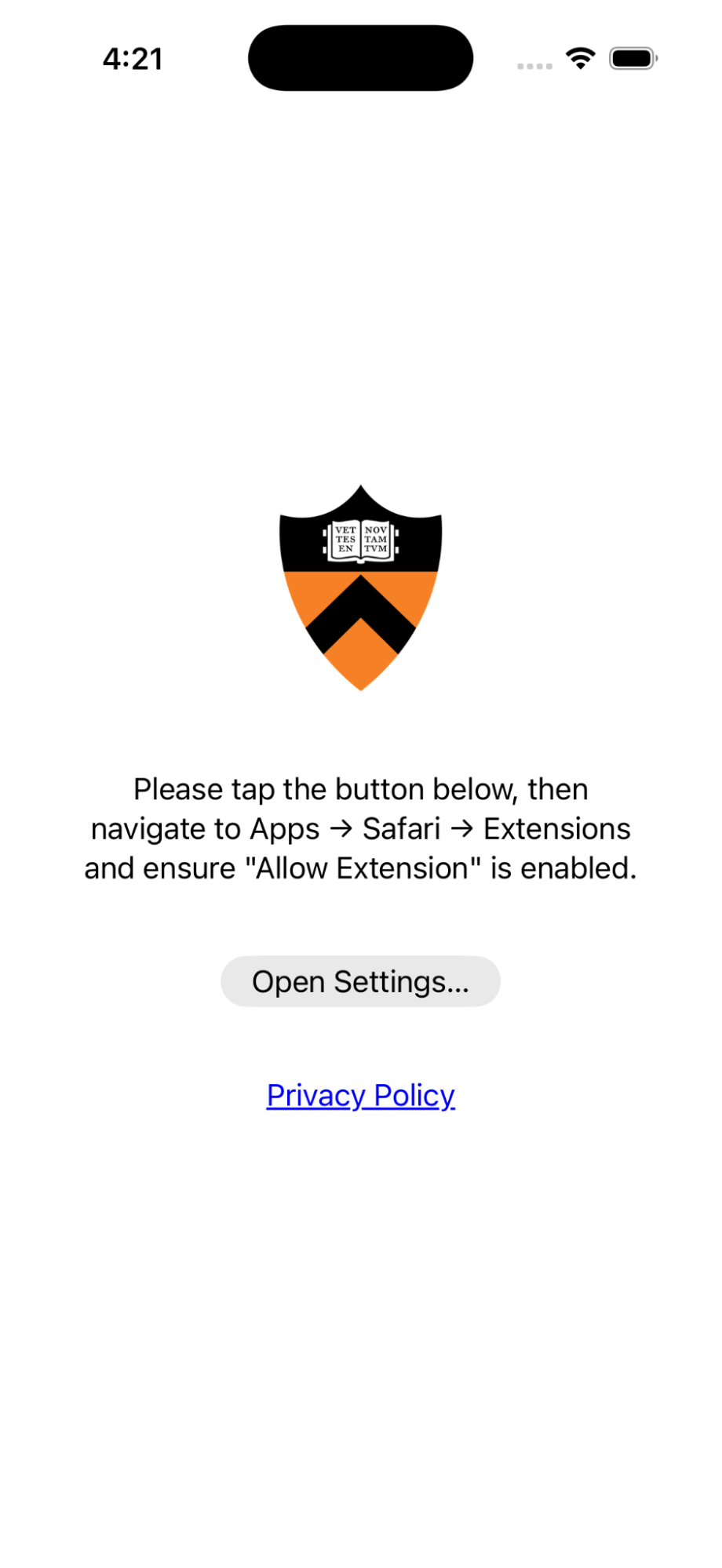
After installation, the Extension should appear as an App with the following screen:
-
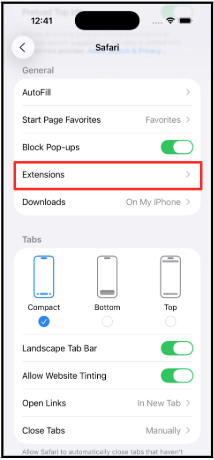
Click on Open Settings, which will open the list of Apps on your device in
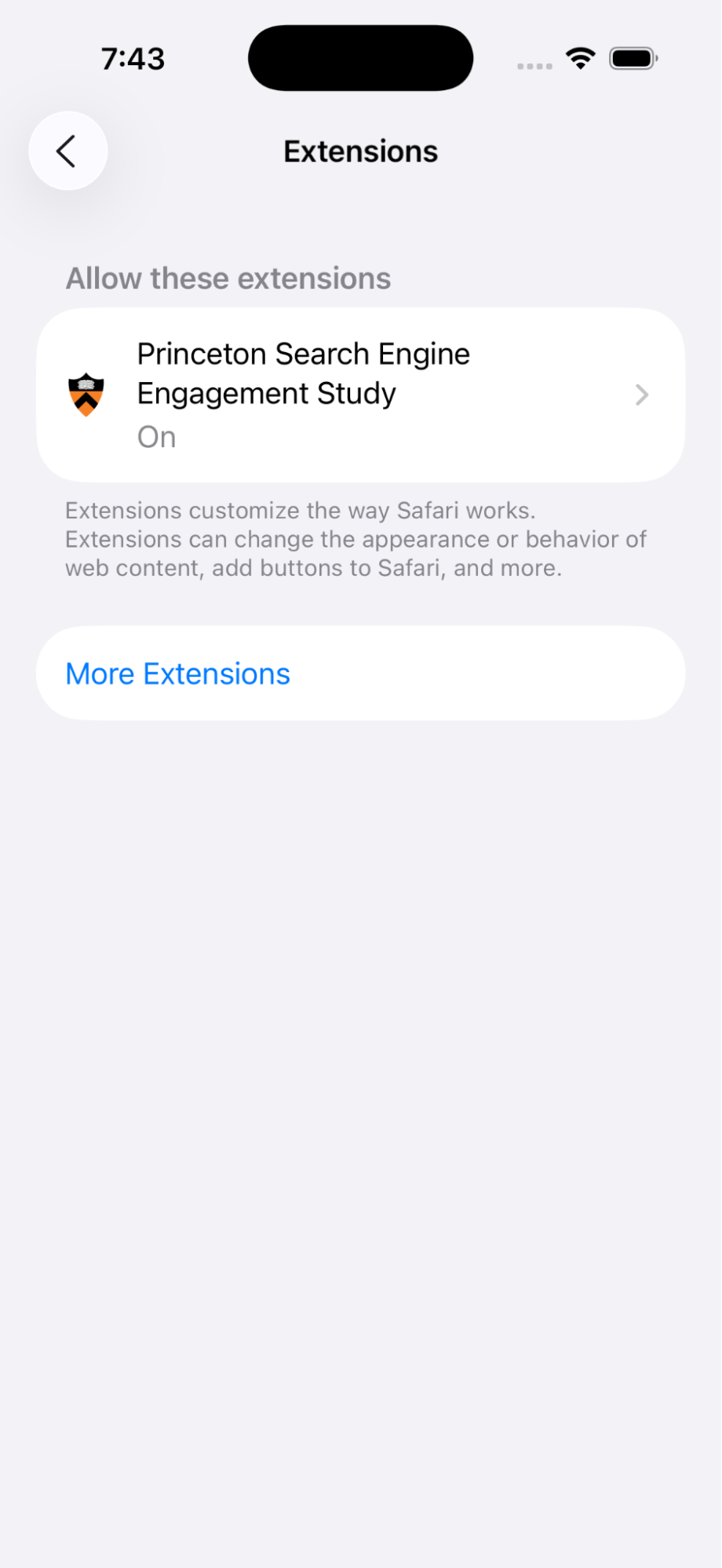
Settings. Scroll down and click on Safari, then, under General navigate to the
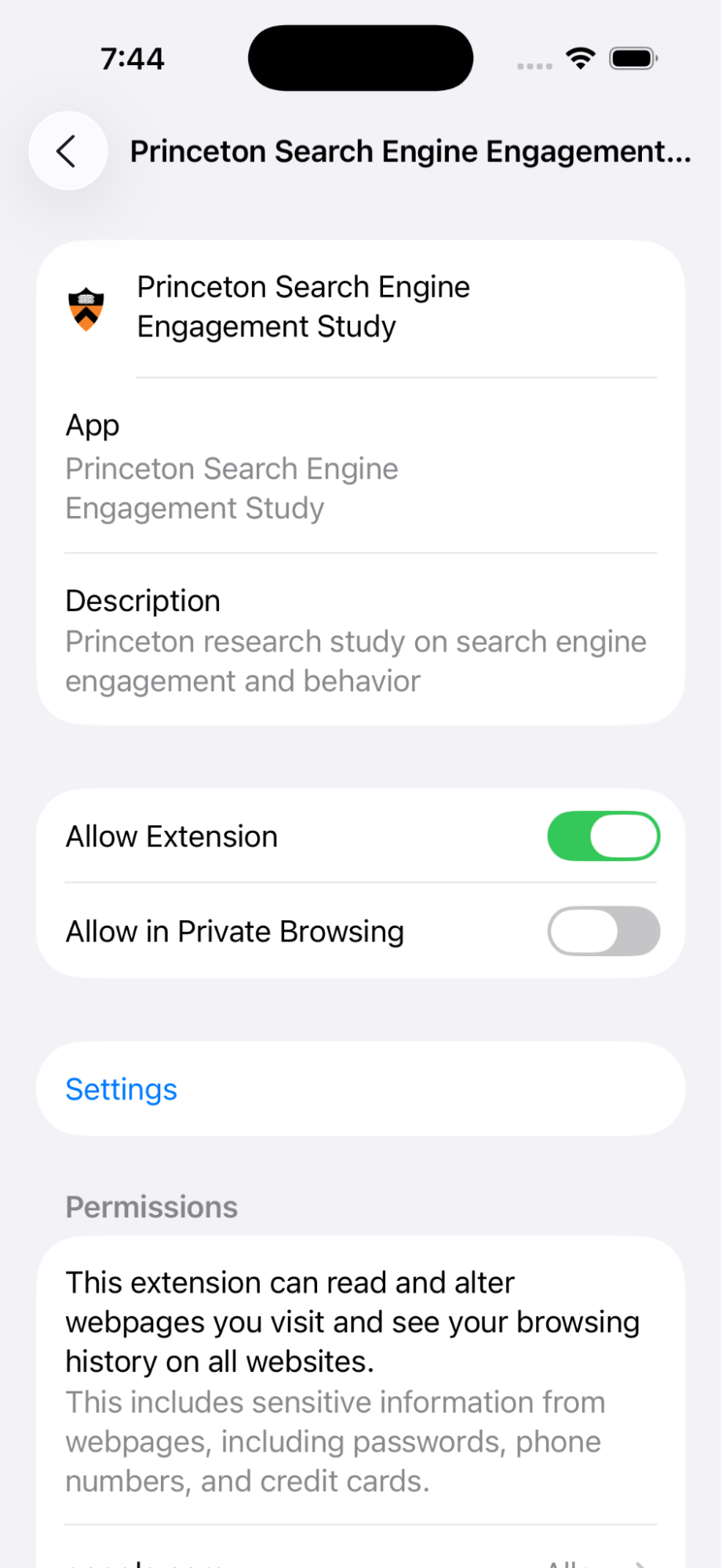
Extensions subpage, and ensure that the Princeton Search Engine Engagement Study is
toggled on.
- Make sure that you do not have any Screen Time restrictions or restrictive apps active (e.g., Opal). If they are active you may not be able to turn on the extension after installation (the extension may appear greyed out).
-
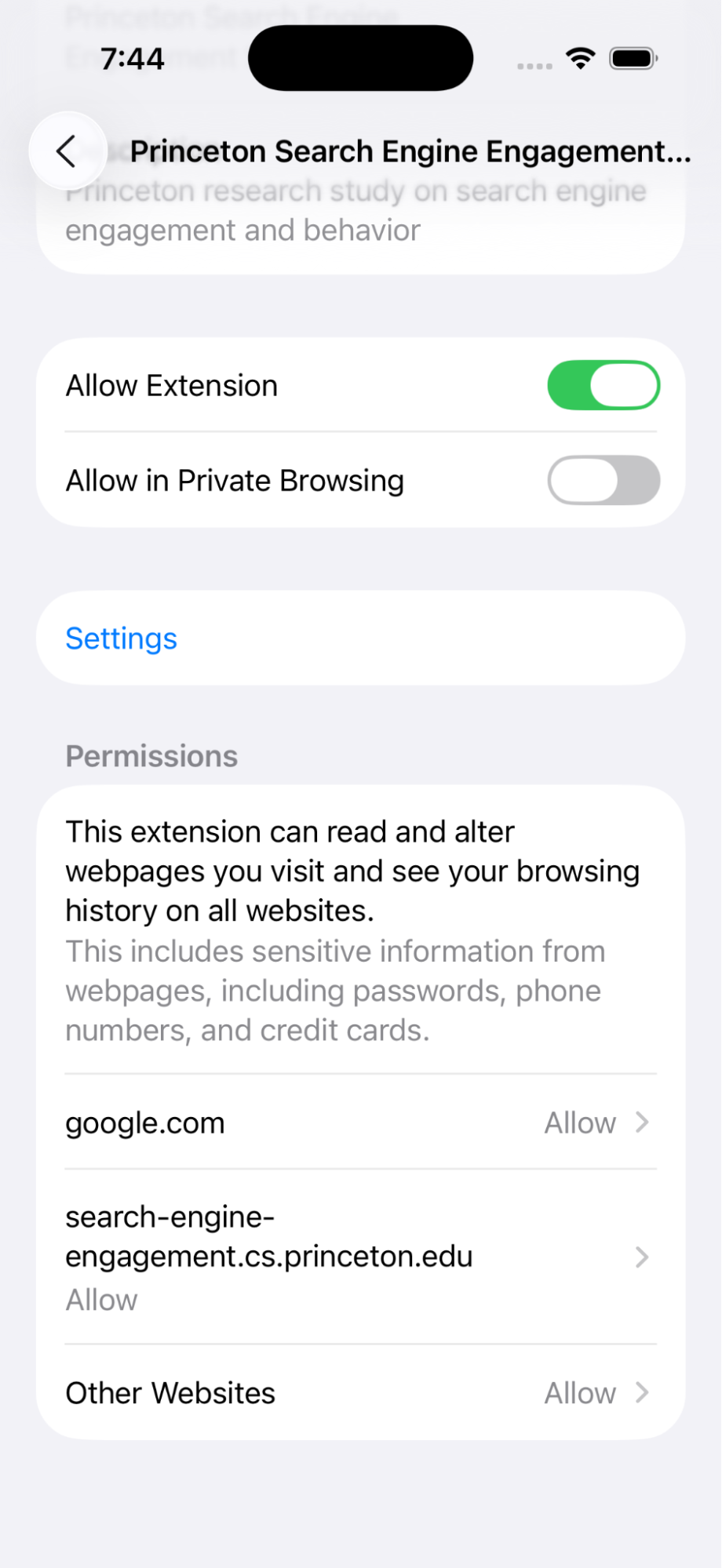
Next, make sure that Permissions are “Allow” for
google.com,
search-engine-engagement.cs.princeton.edu,
and Other Websites.
- Open your Safari app. It should redirect you to the feedback page. If you have the Google app installed, you will be unable to proceed. Please delete the Google app and try again.
-
[We will display a notice explaining that participants may receive a permission prompt
to allow the Extension to modify Safari. After participants continue, iOS may request
this permission. The notice that we will display reads:
You may receive a prompt on your iPhone about allowing this Extension to access certain sites Safari. This relates to your participation in the study and is needed to continue. If you receive this prompt, please tap Allow Always.]
- If the selected mode does not appear for you, please check to make sure you are not using a VPN and that you are located in the United States.
The extension must be installed for at least two weeks for your participation to be considered complete. After two weeks, we may ask you to participate in a follow-up study. After the follow-up, you may uninstall the extension; otherwise, it will automatically uninstall after 1 month.